Color Scheme (Dark / Light Mode)
SmartBase Admin includes built-in support for dark mode, light mode, and auto (system preference) themes. Each user can switch themes from the user menu in the sidebar, and their preference is saved per-user in the database.
- Light Mode
- Dark Mode
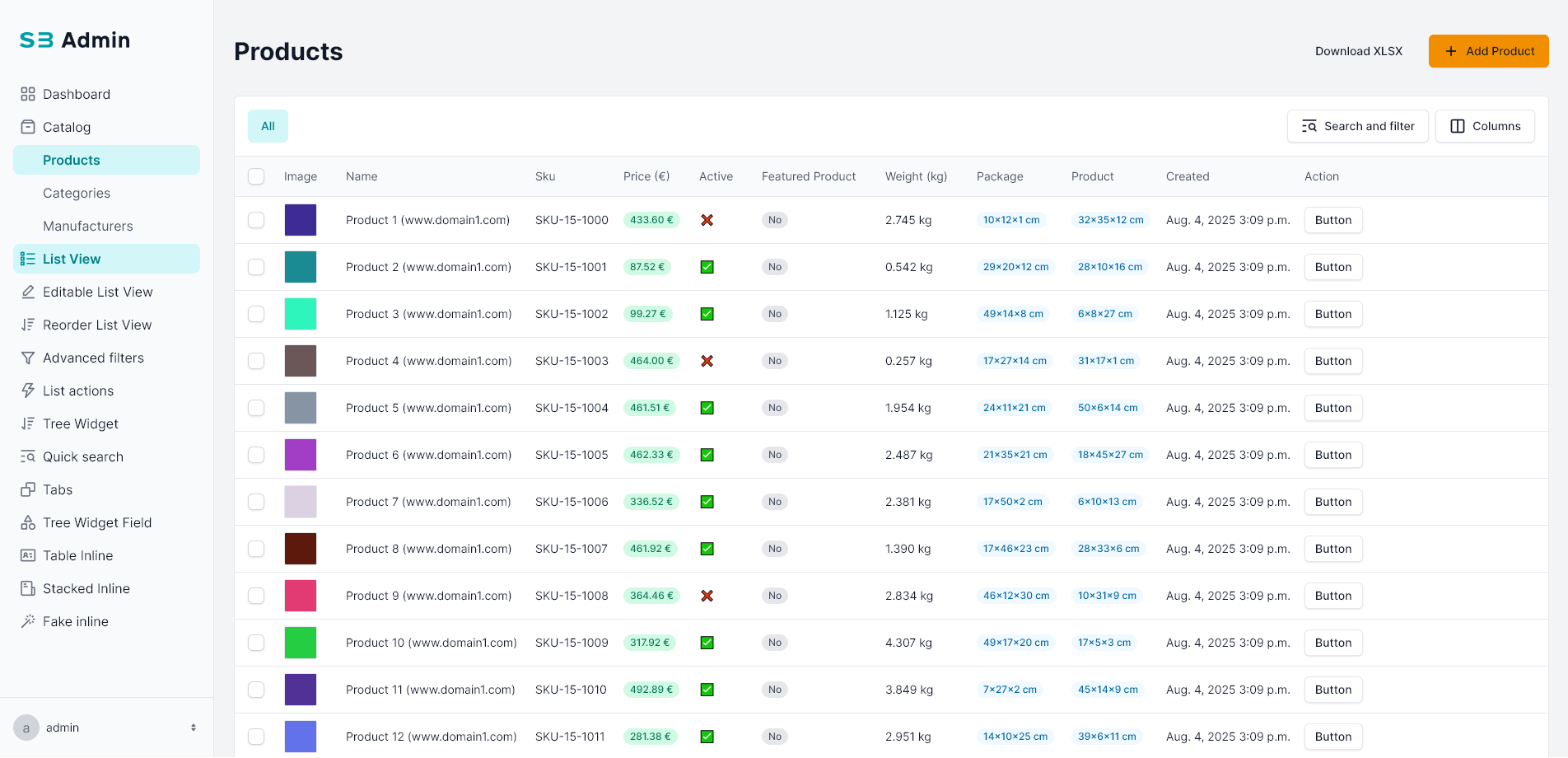
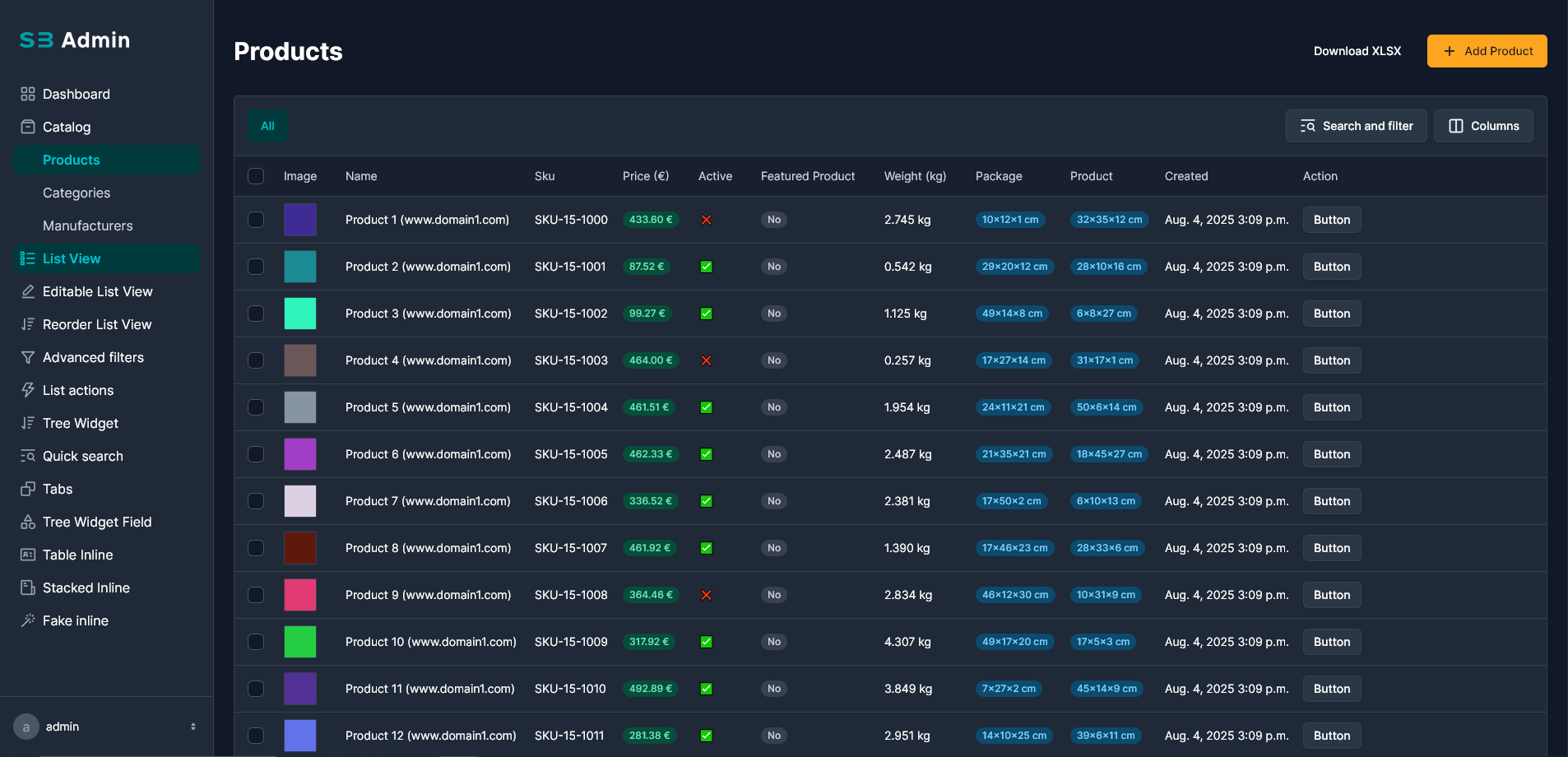
🛠 How It Works
- A theme toggle appears in the user dropdown menu in the sidebar navigation.
- When a user selects a theme, the choice is saved to the
SBAdminUserConfigurationmodel via an HTMX request. - On page load, the
data-themeattribute on the<html>element is set to the user's saved preference (auto,dark, orlight). - In
automode, the browser'sprefers-color-schememedia query determines whether dark or light styles are applied.
🎨 Available Color Schemes
| Value | Constant | Behavior |
|---|---|---|
auto | ColorScheme.AUTO | Follows the operating system / browser preference |
dark | ColorScheme.DARK | Always use dark theme |
light | ColorScheme.LIGHT | Always use light theme |
from django_smartbase_admin.models import ColorScheme

ColorScheme.AUTO    # "auto" - System
ColorScheme.DARK    # "dark" - Dark
ColorScheme.LIGHT   # "light" - Light
💡 Example #1: Setting the Default Color Scheme
Set the default theme for new users via the default_color_scheme parameter on SBAdminRoleConfiguration:
- Code
- Result
from django_smartbase_admin.engine.configuration import SBAdminRoleConfiguration
from django_smartbase_admin.engine.menu_item import SBAdminMenuItem
from django_smartbase_admin.models import ColorScheme

config = SBAdminRoleConfiguration(
    default_view=SBAdminMenuItem(view_id="dashboard"),
    menu_items=[...],
    registered_views=[...],
    default_color_scheme=ColorScheme.DARK,  # New users start in dark mode
)
When a user logs in for the first time, their SBAdminUserConfiguration record is created with this default value. After that, users can change the theme from the UI and their preference is persisted.
💡 Example #2: Customizing User Config Storage
By default, SmartBase Admin stores color scheme preferences in the SBAdminUserConfiguration model, keyed by user_id. If your project uses a non-standard user identification method (e.g., email-based OAuth), override get_user_config on SBAdminConfigurationBase:
from django_smartbase_admin.engine.configuration import SBAdminConfigurationBase
from django_smartbase_admin.models import ColorScheme


class SBAdminConfiguration(SBAdminConfigurationBase):

    @classmethod
    def get_user_config(cls, request):
        """Override to use email-based identification instead of user_id."""
        from myapp.models import MyUserConfig

        email = getattr(request.user, "email", None)
        if not email:
            return MyUserConfig(email="anonymous", color_scheme=ColorScheme.AUTO.value)
        config, _ = MyUserConfig.objects.get_or_create(
            email=email,
            defaults={
                "color_scheme": request.request_data.configuration.default_color_scheme,
            },
        )
        return config

    def get_configuration_for_roles(self, user_roles):
        ...
The returned object must have a color_scheme attribute (a string matching one of the ColorScheme values).
⚡ JavaScript Events
When the color scheme changes, SmartBase Admin dispatches a custom DOM event that you can listen for in your own JavaScript:
document.body.addEventListener('color-scheme-change', (e) => {
    console.log('Theme changed to:', e.detail); // "dark" or "light"
});
This is useful for updating third-party widgets (charts, editors, etc.) that need to react to theme changes.